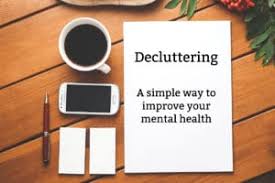
Your phone holds so much. It’s like a digital assistant. But over time, it can get messy.
This mess slows things down. It makes finding things hard. Phone decluttering means cleaning up digital stuff.
It’s about making your phone run better.
Think of your phone like a closet. If it’s full of junk, you can’t find your favorite shirt. Your phone is the same.
Too many apps, photos, and files make it hard to use. Decluttering helps you organize it all.
Why Decluttering Your Phone Matters
A clean phone is a happy phone. It works faster. You can find what you need quickly.
This saves you time every day. It also helps your phone last longer.
When your phone is full, it struggles. It might freeze or crash. Cleaning it up gives it more space to breathe.
This means smoother performance. You’ll feel less stressed too. No more digging through endless folders.
Understanding the Mess: What Fills Up Your Phone?
Many things fill up your phone. Apps are a big one. Many apps take up space.
Some apps you don’t even use. Photos and videos are also huge space hogs. Every picture and video adds up.
Downloads can also clutter your phone. Files you saved once are still there. Text messages with attachments take space.
Even app caches can get large. These are temporary files apps use. They build up over time.
Signs Your Phone Needs a Declutter
Your phone might tell you it’s full. Does it take forever to open apps? Does it warn you about low storage space?
These are clear signs. Maybe your camera won’t take new pictures.
When your phone feels sluggish, it’s a hint. If you see “Storage Almost Full” messages, act fast. Slow performance is a common issue.
It means your phone is working too hard to manage its files.
Step-by-Step Guide to Decluttering Your Phone
Let’s start the cleaning. First, we’ll tackle apps. Then, we’ll move to photos and files.
It’s best to do this in stages. You don’t have to do it all at once.
Think of it like spring cleaning. You pick one room at a time. We’ll do the same for your phone.
This makes it feel less overwhelming. We’ll make sure you know what to do at each step.
Tackling Your Apps: The First Frontier
Go through your apps one by one. Look at your home screen. Then look at your app drawer.
Do you know what every app does? If you don’t use an app, delete it. It’s that simple.
To delete an app on most phones, press and hold it. A menu will pop up. Choose “Uninstall” or “Delete.” Some apps can’t be deleted.
These are usually system apps. But most you can remove. Don’t be afraid to delete.
Consider apps you use rarely. Maybe you used it for one trip. Or for a specific task.
If it’s been months, it’s time to let it go. You can always redownload it if you need it again.
App Clean-Up Quick Wins
Identify Unused Apps: Scroll through your apps. Ask yourself: “When did I last use this?”
Batch Deletion: Delete several apps at once. This makes you feel accomplished.
Check Storage Usage: Go to your phone’s settings. Look for “Storage.” It shows apps using the most space. Delete the big ones you don’t need.
Photos and Videos: Space Eaters Extraordinaire
Photos and videos take up massive space. Your camera roll can explode. Many phones save photos in high quality.
This uses a lot of gigabytes.
The best way to manage photos is to back them up. Use cloud services. Google Photos, iCloud, or Dropbox are good options.
They store your pictures safely online. Then you can delete them from your phone.
Before you delete, be sure. Look at the photos. Are they blurry?
Are they duplicates? Delete bad shots. Keep only the good memories.
You don’t need five blurry pictures of the same dog.
Consider sorting your photos. Create albums. This helps you find things later.
It also makes deleting easier. You can see groups of similar photos. Then decide if you need them all.
Some phones have a “Trash” or “Recently Deleted” folder. Photos stay there for a while. Make sure to empty this too.
It frees up hidden space. Don’t forget about screenshots. They pile up fast.
Photo Management Tips
Enable Cloud Backup: Set up Google Photos or iCloud. Let it back up your pictures automatically.
Review Regularly: Set a reminder. Once a month, go through your photos. Delete duplicates and bad shots.
Organize into Albums: Group photos by event or theme. This makes them easier to find and manage.
Clear Screenshots: Make a habit of deleting screenshots when you no longer need them.
Downloads Folder: The Forgotten Zone
Your downloads folder is often a wasteland. We download things for a reason. Then we forget they exist.
PDFs, documents, audio files, apps we tried. They just sit there.
Open your downloads folder. Look at each file. Do you need it?
If not, delete it. This is a quick win. Most people forget this folder exists.
For important files, move them. Save them to cloud storage. Or move them to a specific folder on your phone.
Don’t let them just pile up in downloads.
Some phones have an option to auto-delete old downloads. Check your settings. This can save you from doing it manually later.
It’s a good safety net.
Clearing App Caches and Data
Apps create cache files. These are temporary files. They help apps load faster.
But they can grow very large. Over time, they take up significant space.
You can clear app caches. Go to your phone’s settings. Find “Apps.” Select an app.
Then choose “Storage.” You’ll see options for “Clear Cache” and “Clear Data.”
Clearing cache is safe. It just removes temporary files. The app will still work. It might be a little slower the first time you open it again.
But it frees up space.
Clearing data is different. This resets the app. It deletes your settings and logins. Only do this if you want to start fresh.
Or if an app is causing problems.
For social media apps, caches can be huge. Clearing them can free up gigabytes. Do this for apps you use most.
Like Facebook, Instagram, or YouTube.
Cache Clearing Strategy
Focus on Large Apps: Target apps known for large caches (social media, streaming services).
Clear Cache Regularly: Make it a monthly task. It’s a simple way to reclaim space.
Be Cautious with “Clear Data”: Understand this resets the app. Only use it if necessary.
Messages and Chat History
Text messages and chat histories can also take space. Especially if they include photos or videos. Some chat apps save all media.
They store it on your device.
Go through your message threads. Delete old conversations. Especially ones you don’t need.
If a conversation is very long, it might be using a lot of space.
Many messaging apps have settings. You can choose how long to keep messages. Or set them to auto-delete after a certain time.
This is a great way to keep things tidy. Look in the settings for apps like WhatsApp or Signal.
For SMS messages, it’s similar. Go into your messages app. Select conversations.
Delete the ones you don’t need. Some phones let you delete in bulk. This makes it faster.
Contact List: Keeping It Clean
Your contact list should be clean. Are there old contacts you don’t recognize? Duplicates can also appear.
Go through your contacts. Remove people you no longer know or need.
Some apps might add contacts. Or your phone might sync with old accounts. Check where your contacts are stored.
Ensure you only have current ones.
Keeping your contacts clean makes searching easier. You can find the right person faster. It also prevents confusion.
System Files and Updates
Your phone’s operating system needs space too. It uses some storage for its own files. System updates also take space when downloading.
Sometimes, old update files remain.
You can’t delete system files. They are essential for your phone to work. But keeping your phone updated is good.
Updates often include optimizations. They can help manage storage better.
When you download an update, it uses space. After installation, most phones delete the update file. If yours doesn’t, check your storage settings.
Sometimes there’s a way to clean up old update files.
Restarting your phone can also help. It clears temporary system files. It’s like a mini-reset for the system.
This can free up a small amount of space.
Storage Analysis Tools: Your Digital Detective
Most smartphones have built-in tools. These help you see what’s taking up space. They break down usage by category.
Apps, photos, system, other. This is very helpful.
On Android, go to Settings > Storage. On iPhone, go to Settings > General > iPhone Storage. These sections show you a clear picture.
Look for categories that seem too large. If “Other” is huge, it means unorganized files. This is where downloads and cache might hide.
Some third-party apps also do this. They scan your phone. They find large files and duplicates.
Use these tools with caution. Stick to official apps or well-known ones.
Using Storage Tools
Check Regularly: Use these tools monthly. It’s your first step to finding space.
Categorize Your Usage: Understand where your storage is going.
Identify Big Offenders: Focus on the largest categories first for the biggest impact.
The “Other” Category: A Mystery Solved
The “Other” category in storage can be confusing. It’s a catch-all. It includes temporary files, system data, cache, and app data that isn’t easily categorized.
Clearing app caches and data helps reduce this. Deleting old messages and attachments also helps. Downloads that aren’t in specific app folders also contribute.
Sometimes, a factory reset is the only way to clear a large “Other” category. But this is a last resort. Try all other methods first.
A factory reset deletes everything.
Ensure you back up your data before a reset. Contacts, photos, important files. You don’t want to lose anything precious.
My Experience: The Day My Phone Froze
I remember one afternoon vividly. I was trying to take a picture of my cat doing something hilarious. I tapped the camera icon.
Nothing happened. I tapped it again. Still nothing.
Then my whole phone went black. Panic set in. It wouldn’t turn back on.
After a tense few minutes, it finally booted up. But it was so slow. Every app took ages to open.
I got that dreaded “Storage Almost Full” warning. I realized then how much junk I had. Photos from years ago.
Apps I hadn’t touched in months. Downloads I’d forgotten about. It was a mess.
That day, I committed to a regular declutter. It wasn’t a one-time fix. It became a habit.
Now, my phone runs so much better. I don’t get that panic anymore. And I can actually find my cat pictures!
Preventative Measures: Keeping It Clean Long-Term
Decluttering isn’t a one-time event. It’s an ongoing process. Set up good habits.
This prevents your phone from becoming a mess again.
Regularly delete apps you don’t use. Do this every few months. A quick scan is all it takes.
Back up photos and videos automatically. Make sure your cloud service is active. Review your backups often.
Clear caches every month. Use your phone’s settings. Or a trusted cleaning app.
Be mindful of downloads. Delete them once you’re done. Don’t let them linger.
Review storage settings regularly. Catch problems early. Before they slow down your phone.
When is it Time for a Factory Reset?
A factory reset is a drastic step. It wipes your phone clean. It brings it back to how it was when new.
You should only do this if other methods fail.
If your phone is constantly crashing. If it’s extremely slow after decluttering. If the “Other” storage category is huge and won’t shrink.
These are signs a reset might be needed.
Always back up your data first. This is critical. Photos, contacts, messages, app data. Ensure everything important is saved.
You can use Google Drive, iCloud, or computer backups.
After the reset, you can restore your apps and data. Set up your phone as new. This can often solve deep-seated issues.
It gives your phone a fresh start.
Quick Checks and What to Look For
Here are some simple checks to do often:
- Check storage space weekly. See if it’s creeping up.
- Scan your home screens for unused apps. Delete them.
- Look at your downloads folder. Empty it out.
- Check your photo gallery for duplicates. Remove them.
- Review app usage in settings. Find apps you rarely open.
What This Means for You
A decluttered phone means a better experience. It’s faster. It’s more reliable.
You’ll spend less time waiting. And more time doing what you want.
It also means your phone may last longer. Less strain on the hardware. Better performance means you might not need to upgrade as soon.
This saves you money.
Most importantly, it reduces frustration. A messy phone can be a source of stress. A clean one helps you focus.
It lets you enjoy your device.
FAQs About Decluttering Your Phone
Will deleting apps slow down my phone?
No, deleting unused apps actually helps your phone run faster. It frees up system resources. It gives the phone more memory to work with.
Is it safe to delete app cache?
Yes, it is generally safe. Clearing the cache removes temporary files that help apps run faster. Your app data and settings are not affected.
The app might load a bit slower the first time after clearing the cache.
How often should I declutter my phone?
It’s best to do a quick decluttering session once a month. A more thorough cleaning can be done every 3-6 months. Regular maintenance prevents it from getting too messy.
What is the “Other” storage on my phone?
The “Other” category includes temporary files, system data, cache files, and other miscellaneous data that your phone doesn’t categorize easily. Clearing caches, deleting old messages, and managing downloads can help reduce this category.
Can I lose my photos if I clear app data?
Clearing app data can reset an app to its default state. If your photos are stored within that app and not backed up elsewhere, they could be lost. Always ensure photos are backed up to a cloud service or computer before clearing app data, especially for photo-related apps.
What’s the difference between clearing cache and clearing data?
Clearing the cache removes temporary files to free up space. Your app settings and login information remain. Clearing data resets the app entirely, deleting all your settings, accounts, and files associated with that app.
It’s like reinstalling it.
Conclusion: A Cleaner Phone, A Clearer Mind
Taking control of your phone’s digital space is empowering. It makes your device more useful. It makes your digital life easier.
Start small. Pick one area today. You’ll be amazed at the difference.
Enjoy a faster, cleaner phone!